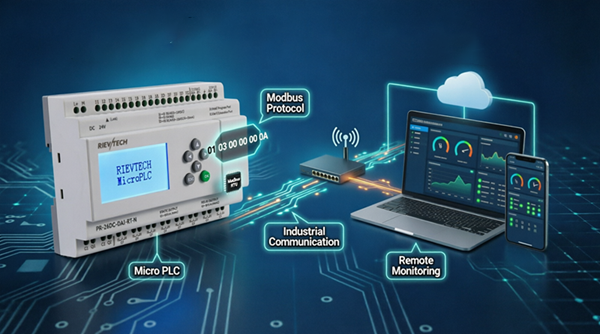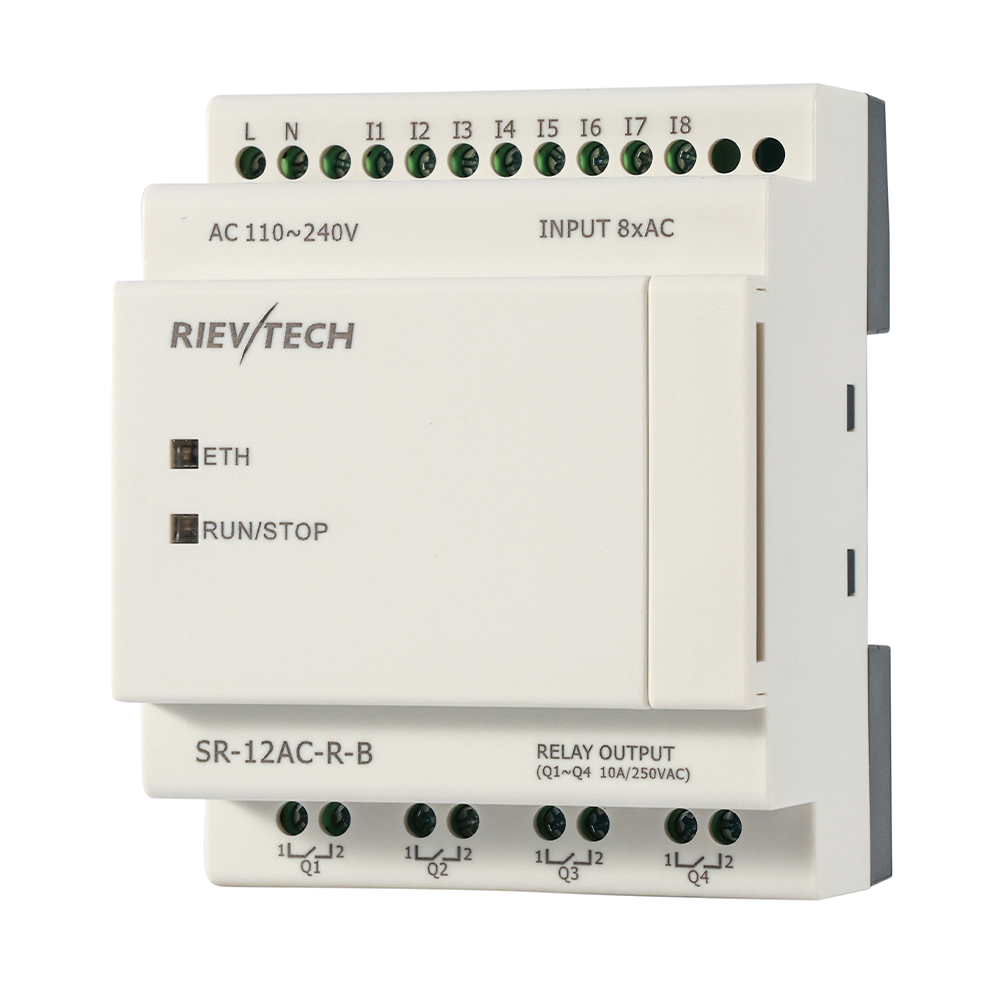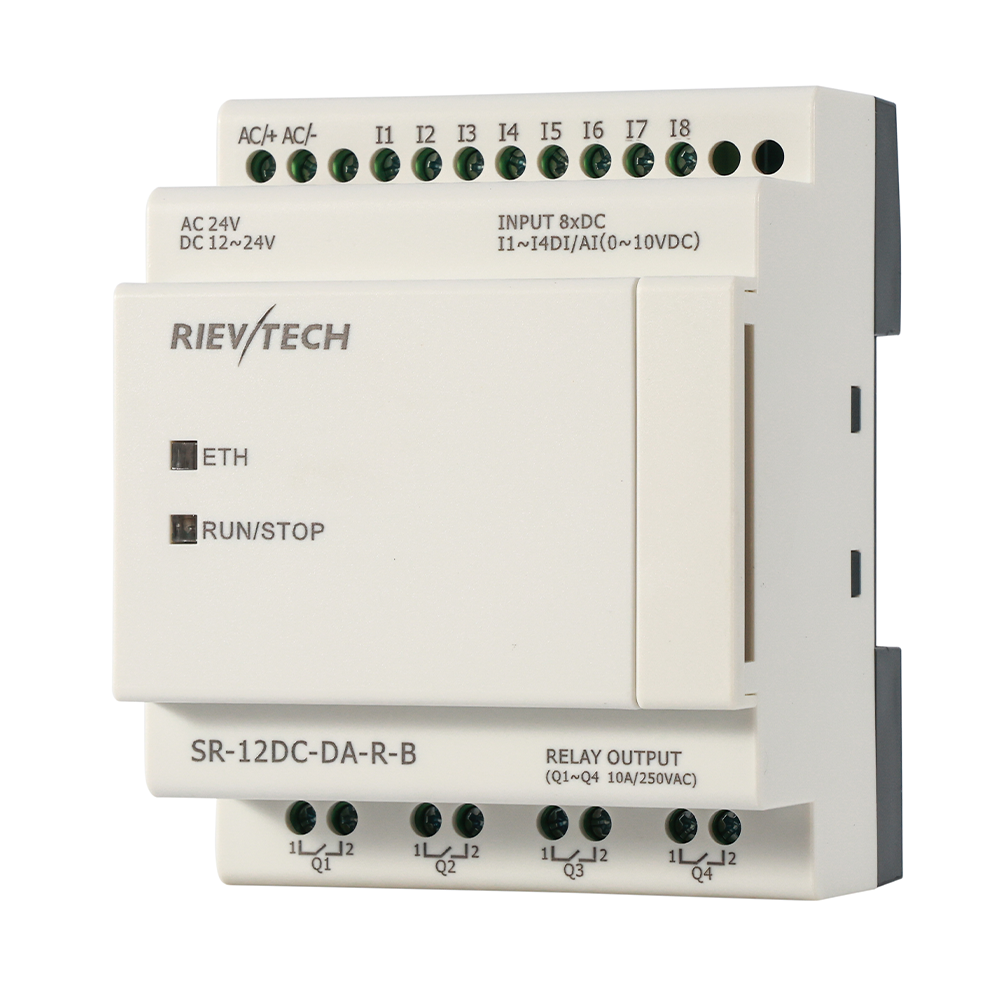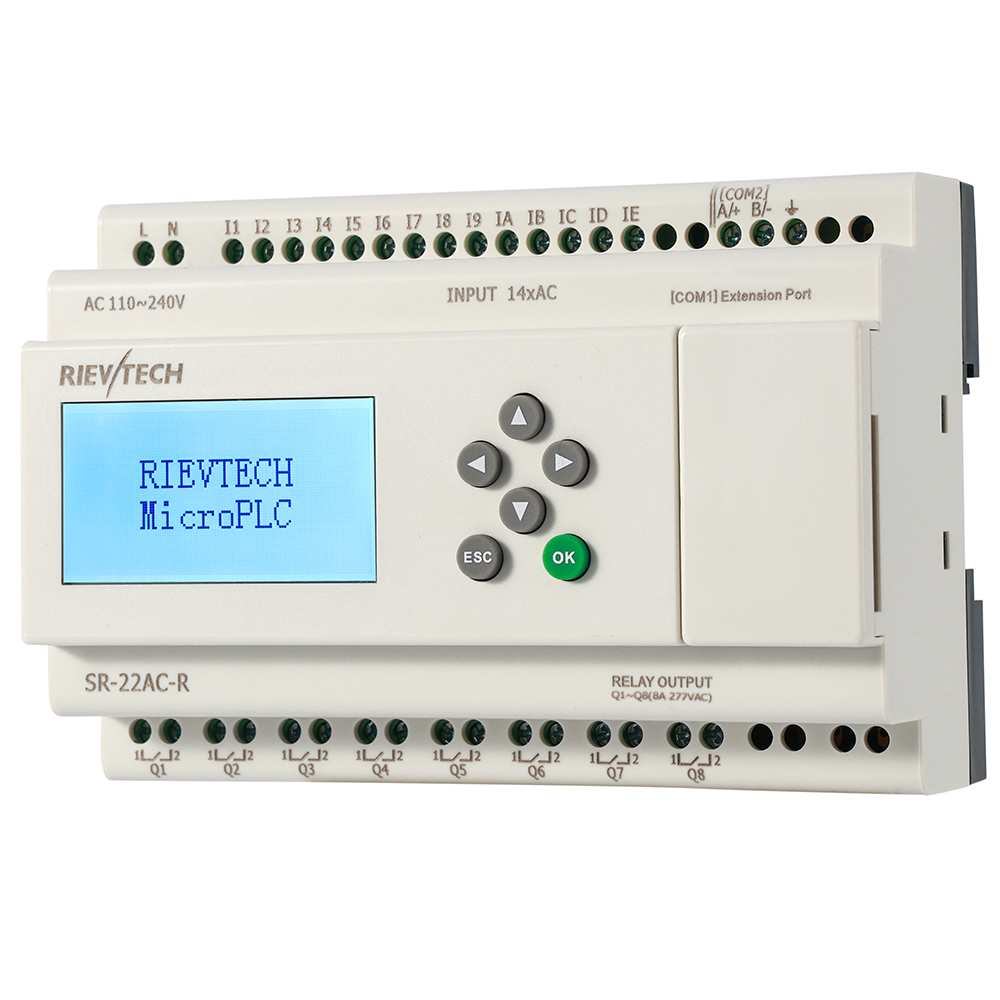
Modbus is the lingua franca of industrial panels — HMI screens, VFDs, energy meters and SCADA systems all speak it. An xLogic controller speaks it natively, as master or slave, over RS485 or Ethernet. This tutorial wires up both and proves the link with the free EasySCADA package.
Modbus RTU over RS485
1. Wire the Bus
RS485 needs two wires plus a common reference. On xLogic controllers use the COM1 port (the SR-RS485 or PRO-RS485 module provides the terminal). Connect A-to-A, B-to-B, and reference-to-reference between the PLC and the peer device. Keep the cable twisted pair and away from power lines; terminate the bus ends if the run is long.
2. Set the Slave Address and Baud Rate
Every device on the bus needs a unique address. Configure COM1 parameters via the LCD panel menu: Modbus RTU , an address (e.g. 1), and a baud rate both sides agree on (9600 and 19200 are the usual choices). Parity and stop bits must match the master too.
3. Read the Registers
xLogic maps its data to standard Modbus addresses: discrete inputs for I-points, coils for Q-outputs, and holding registers for analog values, timers and flags. The software shows the exact register map for your model —see the end section of the manual. A master reads the PLC as a normal Modbus slave; nothing else needs configuring.
Modbus TCP over Ethernet
On Ethernet models the same registers are available over TCP, which removes the address and termination worries entirely:
- Set a fixed IP for the PLC (in xLogicSoft communication settings, or from the LCD menu on some models).
- Give the HMI or SCADA the PLC's IP and port 502 — the standard Modbus TCP port.
- Point your software at the same register addresses used for RTU. No serial settings, no pull resistors.
Modbus TCP is the right choice whenever the panel already has a network switch and a PC or touchscreen on it. See Modbus master or slave for the roles the PLC can play on the same bus.
Connect EasySCADA in Two Minutes
The free EasySCADA package is the fastest way to prove the link. Add the PLC as a new device, choose Modbus RTU (COM port) or Modbus TCP (IP address), and map a few registers to screen objects. EasySCADA connects to xLogic over serial or Ethernet; the default service ports 6365/6364 in the sample project are just examples — port 502 is the one your HMI master will use for TCP.
When the display starts showing live values from the PLC, the communication layer is done — the same link that feeds a cloud dashboard, an HMI or a BMS.
Troubleshooting in 30 Seconds
- No response: check address, baud rate and parity on both sides — one mismatch kills the whole bus.
- Garbled values: verify the data format (word order) and register length match the master's expectation.
- Works on the bench, fails on site: check grounding and route the pair away from VFD cables.
Next tutorial: download a program via USB, RS232 and Ethernet .